How to make a Google Sheet look good using AI: just text Sabi

Posted by
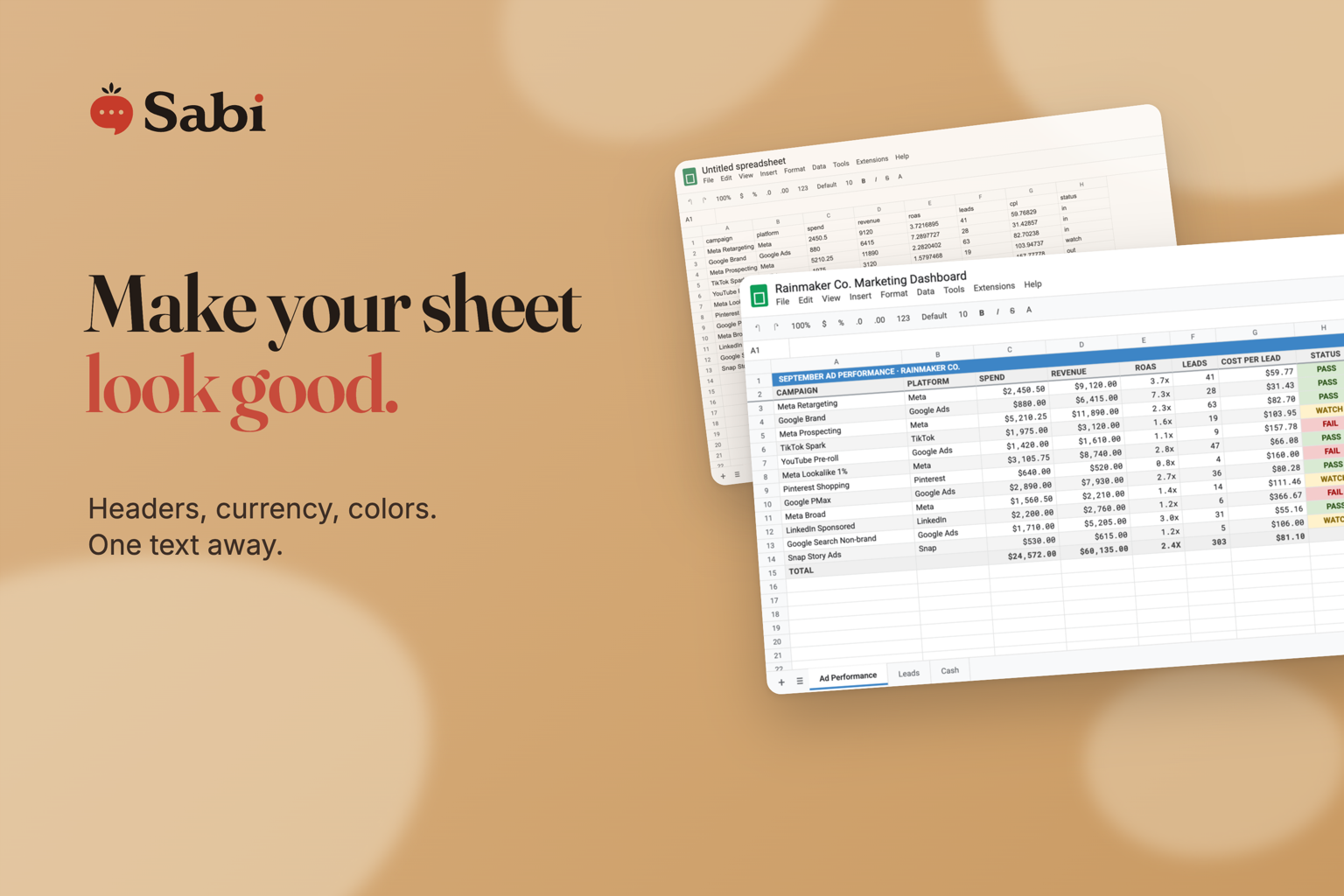
The fastest way to make a Google Sheet look good using AI is to text Sabi "make this sheet look better". She styles the header, fixes the number formats, adds banded rows and colors the cells that need attention. As of September 2026 this works on any sheet in a Google account you've connected to her, with nothing to install.
She has read, written and built sheets for a while. This is the part that was missing. A sheet she built for you used to come back correct but plain. Now it comes back correct and readable.
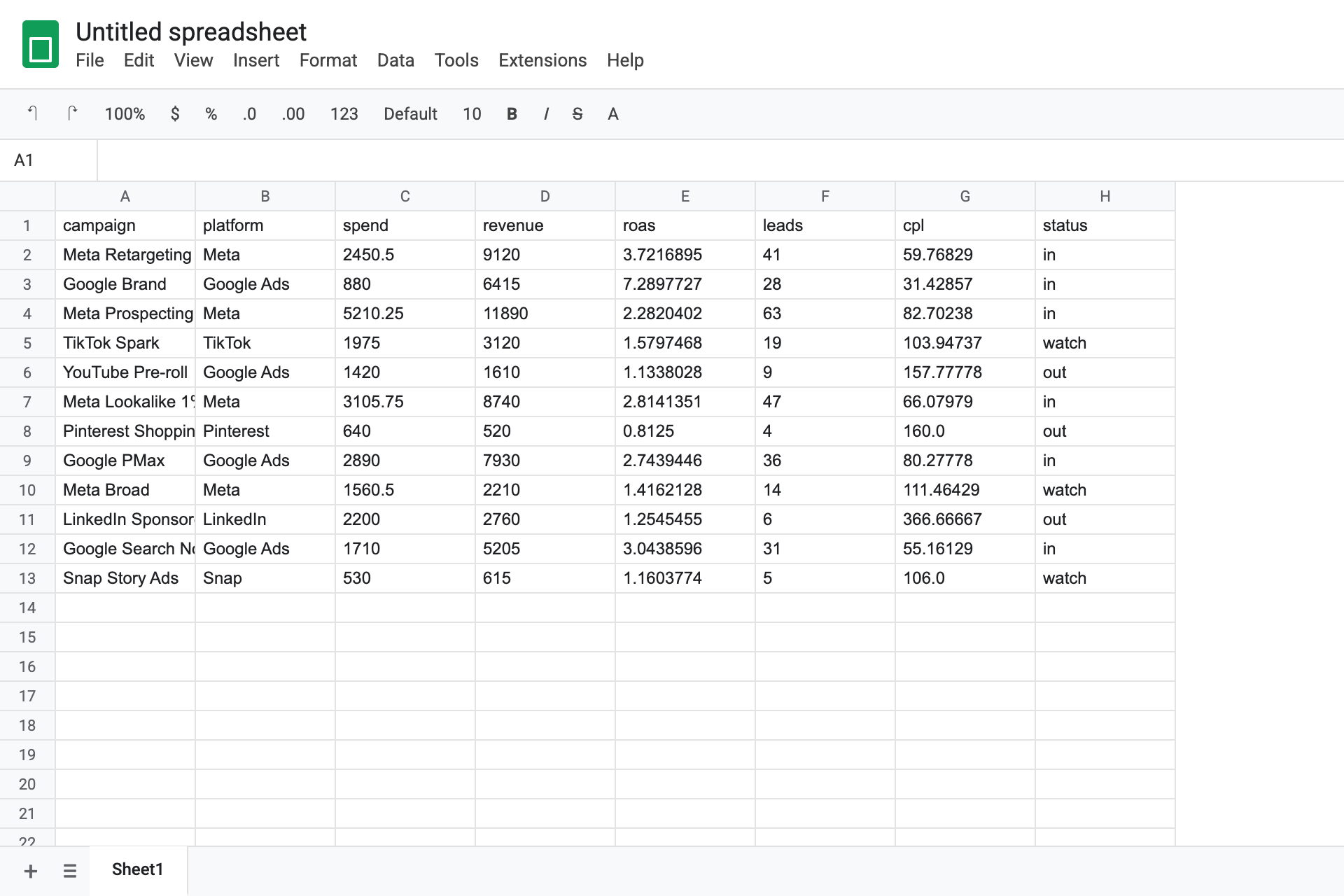
Here's the kind of sheet most of us end up with after a quick data dump:
And here's the same sheet after one text to Sabi:
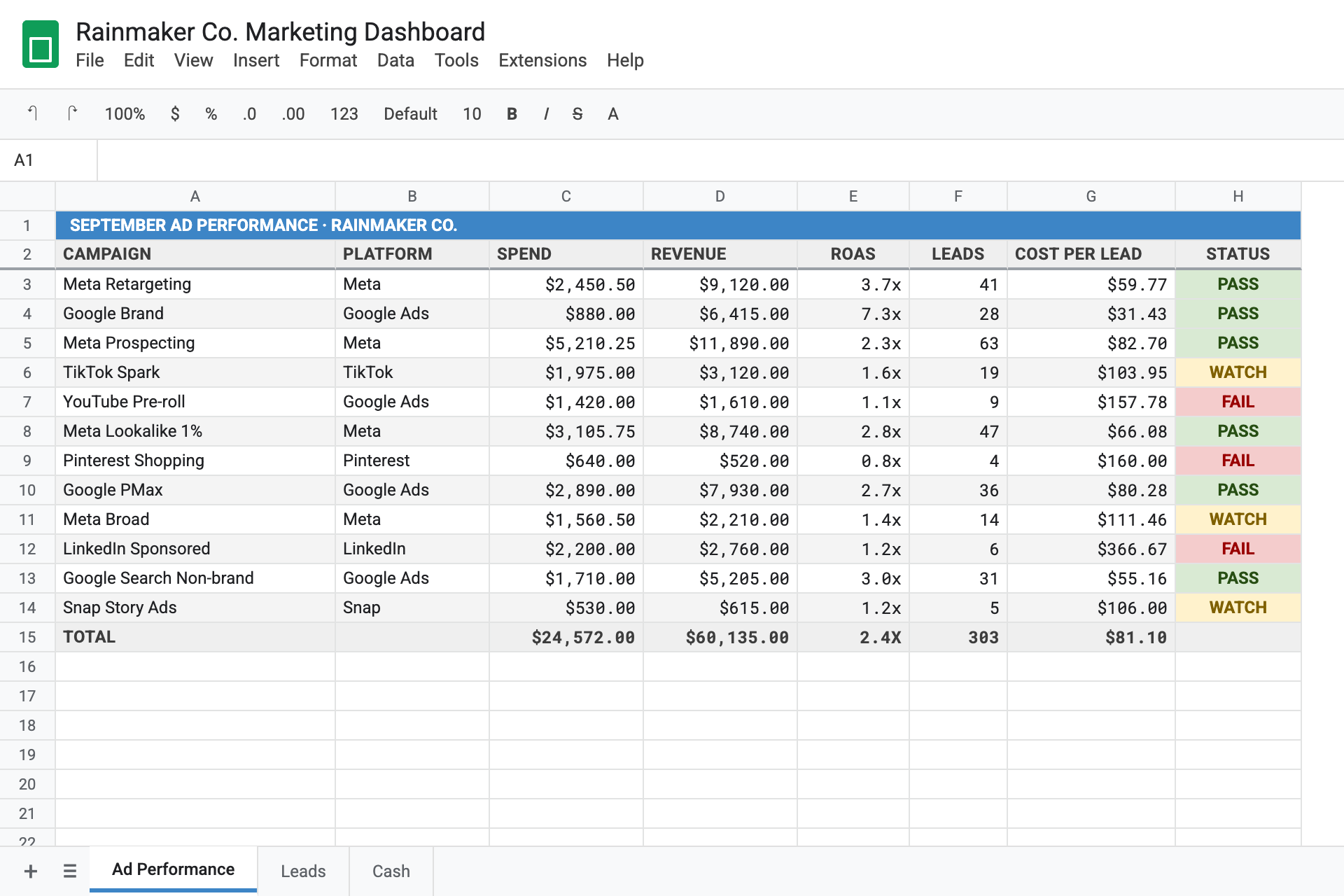
Same 12 rows. Same numbers. You can read them now.
What can Sabi format in a Google Sheet?
Everything you'd normally do by hand in the Format menu.
- The header row. Bold, light gray, frozen so it stays put when you scroll.
- Number formats. Dollars show as dollars, percentages as percentages, dates as dates. Negative amounts turn red.
- Banded rows. Alternating shading so your eye can follow a line across the sheet.
- Cells that color themselves. Tell her "under 30% is green, 30 to 40 is yellow, over 40 is red" and the cells follow that rule. Rows you add next month follow it too.
- Layout. Freeze the first column, resize columns to fit, wrap long text, put a title across the top.
- Tabs and dropdowns. Color-code your tabs. Add a dropdown so a column only accepts the values you want.
Sabi formats a Google Sheet the same way a careful bookkeeper would: header frozen, money as money, and a color on anything you need to act on.
How do you ask Sabi to format a sheet?
Text her the sheet and what you want. Vague works. Specific works.
- "Make my Q3 pipeline sheet look clean."
- "On the Ad Performance tab, format Spend and Revenue as currency, and color the ROAS column: green above 3, yellow between 2 and 3, red under 2."
- "Freeze the header row and add banded rows on every tab in my client tracker."
- "Color the Cash tab blue and the Debt tab red."
If you send a link to the sheet, she uses that. If you just name it, she finds it in your Google Drive. Tab names with spaces are fine.
If you give her no specifics, she uses a sensible default: gray header, banded rows, currency where it belongs, a hairline border around the data. Tell her what you'd change and she adjusts it. If she misses, tell her. She learns like a new hire.
Does Sabi change my numbers when she formats?
No. Formatting never touches a value or a formula. She changes how a cell looks, not what's in it. The sheet in the picture above has the same 12 campaigns and the same totals before and after.
One thing she won't do: style empty cells. If the data isn't in the sheet yet, ask her to write it first, then to format it. She'll tell you if she finds nothing to style.
This is the same rule as everything else she does with your Google Sheets and the rest of your business: read, write, tidy, and leave your data where you left it.
Do I need Gemini or an add-on to format a sheet with AI?
No. If your Google account is connected to Sabi, a text does it.
The other routes work too, with more setup. Gemini in Google Sheets can apply conditional formatting and add dropdowns, but it needs a paid Workspace or Google AI plan, an admin has to switch it on for work accounts, and its conditional formatting can't set bold, italic or fonts. Marketplace add-ons like Styles for Sheets do a good job and need installing and permissions inside every sheet.
Sabi sits outside the sheet. You text her from your phone, she formats the sheet in your Google Drive, and you open the link. No plan upgrade, no add-on, no sidebar.
How do I get set up?
- Connect Google Sheets on your Connections page if you haven't already.
- Text Sabi the name of the sheet or a link to it, and what you want it to look like.
- Open the link she sends back.
New to Sabi? Meet her at meetsabi.com/connect. Your first text creates your account.
Questions or feedback? Just tell Sabi, or email [email protected].